Introducing the TeamVis Menu Bar App for Mac
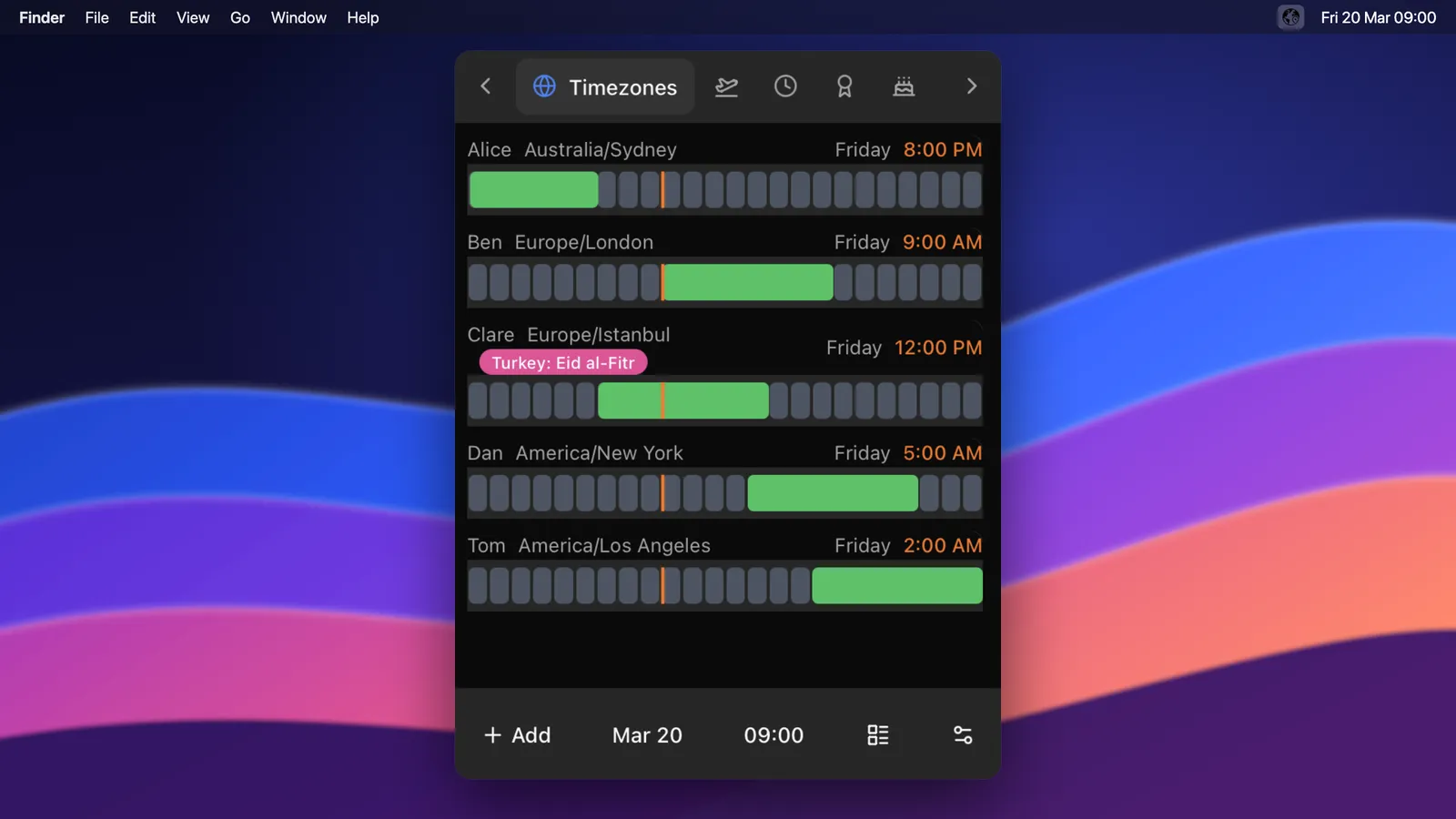
The TeamVis menu bar app puts your team’s local times and working hours one click away on your Mac. It’s free for individuals, it works with Slack and Microsoft Teams, and it’s available now for Apple Silicon and Intel Macs.
Why a menu bar app
When I was working with developers in America, Australia and the Philippines, the question I asked most often was a simple one: is this person working right now? Answering it meant opening a browser tab, finding a world clock and doing some time zone maths that was easy to get wrong.
The TeamVis website already answers that question, with maps and charts of everyone’s working hours. But a website is still another tab. I wanted the answer to sit where the clock already is, at the top of the screen, so checking before you send a message takes a second rather than a detour.
What it shows
Click the TeamVis icon in your menu bar and you get five tabs.
Timezones
Every teammate gets a bar showing their working day next to yours, with a marker for right now, so you can see at a glance who’s working, who’s about to start and who logged off hours ago. You can also switch to a clock view that groups everyone by time zone.
Holidays
Upcoming national holidays in the countries your team works from, and who each one affects. Worth a look before you book a Monday meeting.
DST
Upcoming daylight saving time changes across your team’s time zones. Countries change their clocks on different dates, so for a few weeks a year the gap between you and a colleague is an hour different from usual. This tab tells you when that’s coming.
Anniversaries and Birthdays
Work anniversaries and birthdays coming up across your workspace, so they don’t pass unnoticed.
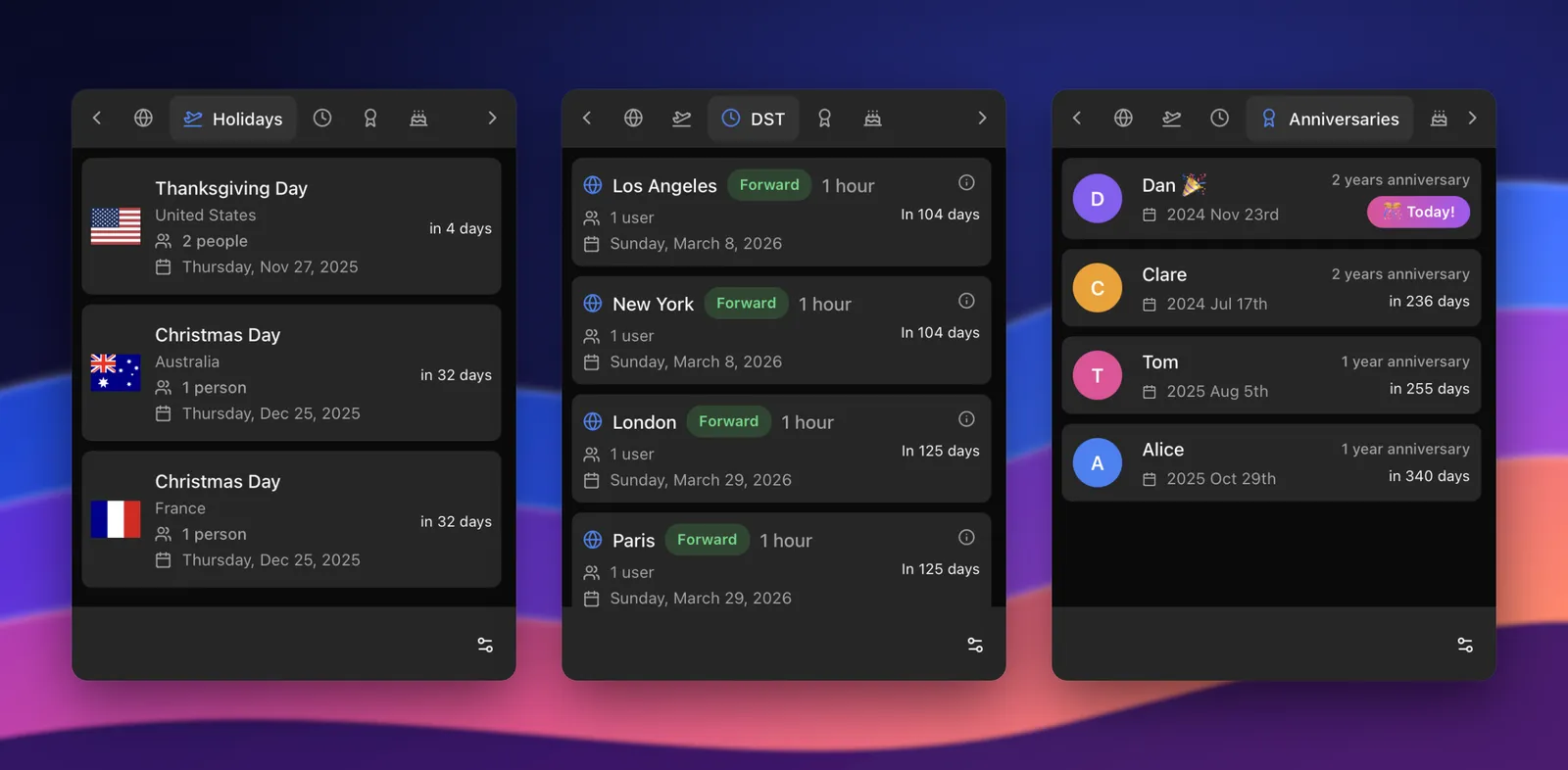
The Holidays, DST and Anniversaries tabs.
Check any date and time
At the bottom of the app there’s a date and a time. Change them and the Timezones tab shows where everyone’s day will be at that moment. It’s the quickest way to check whether 4pm next Thursday works for someone in Sydney, or what your regular meeting will look like after the clocks change.
Where your team comes from
The app shows the people in your TeamVis workspace. Connect Slack or Microsoft Teams and everyone is synced automatically with their time zones, so new starters appear without anyone adding them. You can also add people yourself, or use TeamVis on its own without connecting anything.
Setting it up
- Download the version for your Mac, Apple Silicon or Intel, then open the DMG and drag TeamVis into Applications.
- Open the app and click Generate Code. Approve the device in your browser, then type the code it shows you into the app.
- Click the TeamVis icon at the top of your screen whenever you need it.
It needs macOS 10.13 or later. It lives in the menu bar rather than the Dock, and it keeps itself up to date.
What it costs
Like the TeamVis website, the menu bar app is free for individuals. Slack and Microsoft Teams sync is free while TeamVis is in beta.
It’s Mac only for now. If you’d like a Windows version, let me know. Feedback like that decides what gets built next.
If your team spans a few time zones, download the menu bar app and see who’s working before you hit send.