Installing the TeamVis App in Microsoft Teams
Follow these steps to manually install the TeamVis app in your Microsoft Teams workspace. Once installed, you can add access TeamVis within the app and make use of our chatbot within your channels.
Beta
We're in beta and are in the process of submitting our app to the official Microsoft Teams app store. For now, you'll need to manually upload the app. Follow the instructions below to get started.
Download TeamVis Teams AppStep 1: Open the Apps sidebar and upload the app
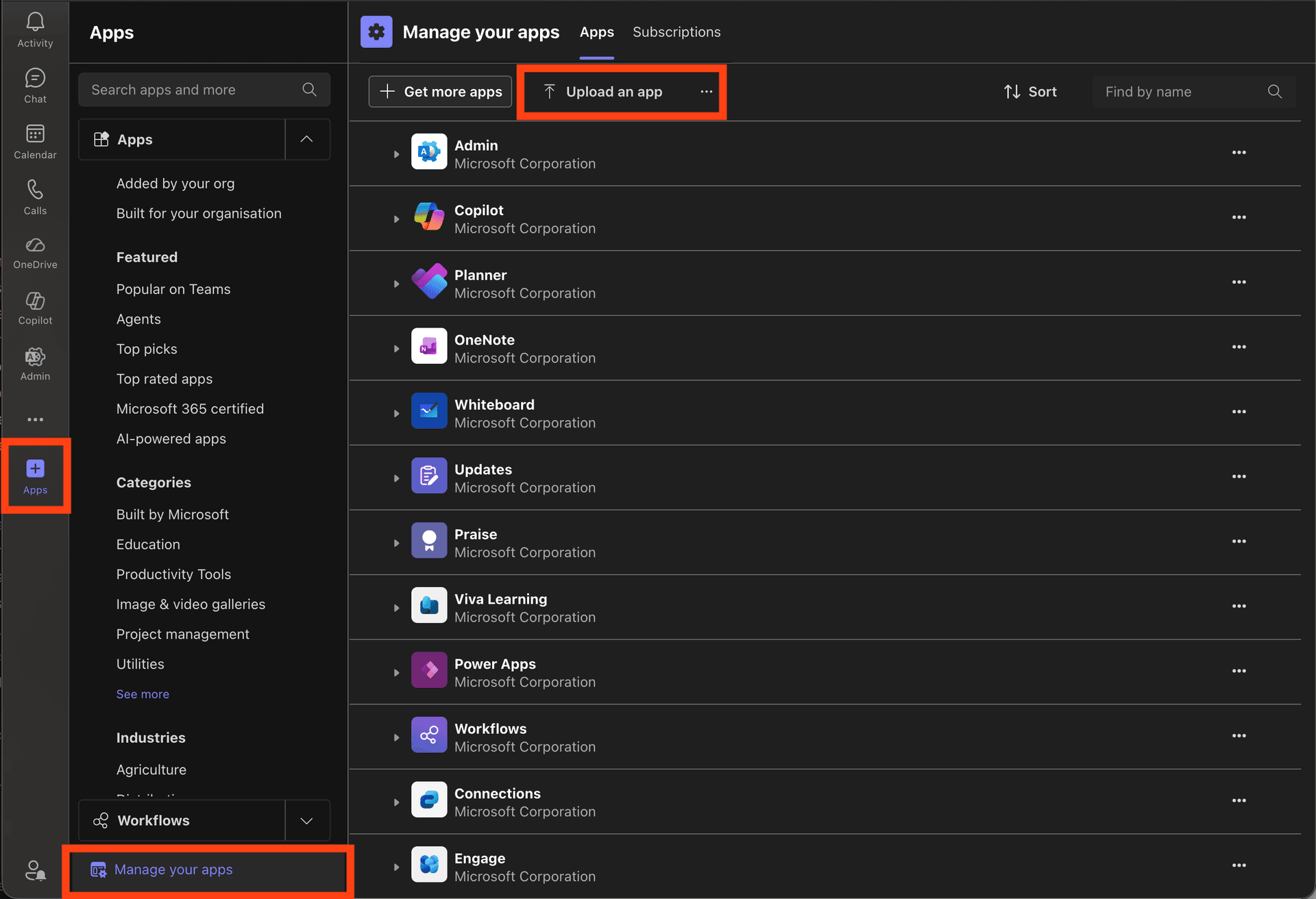
In Microsoft Teams, click the Apps button in the left sidebar to open the Apps panel. Then click Manage your apps, and select Upload an app to upload the TeamVis app package you downloaded above.
Step 2: Upload the app package
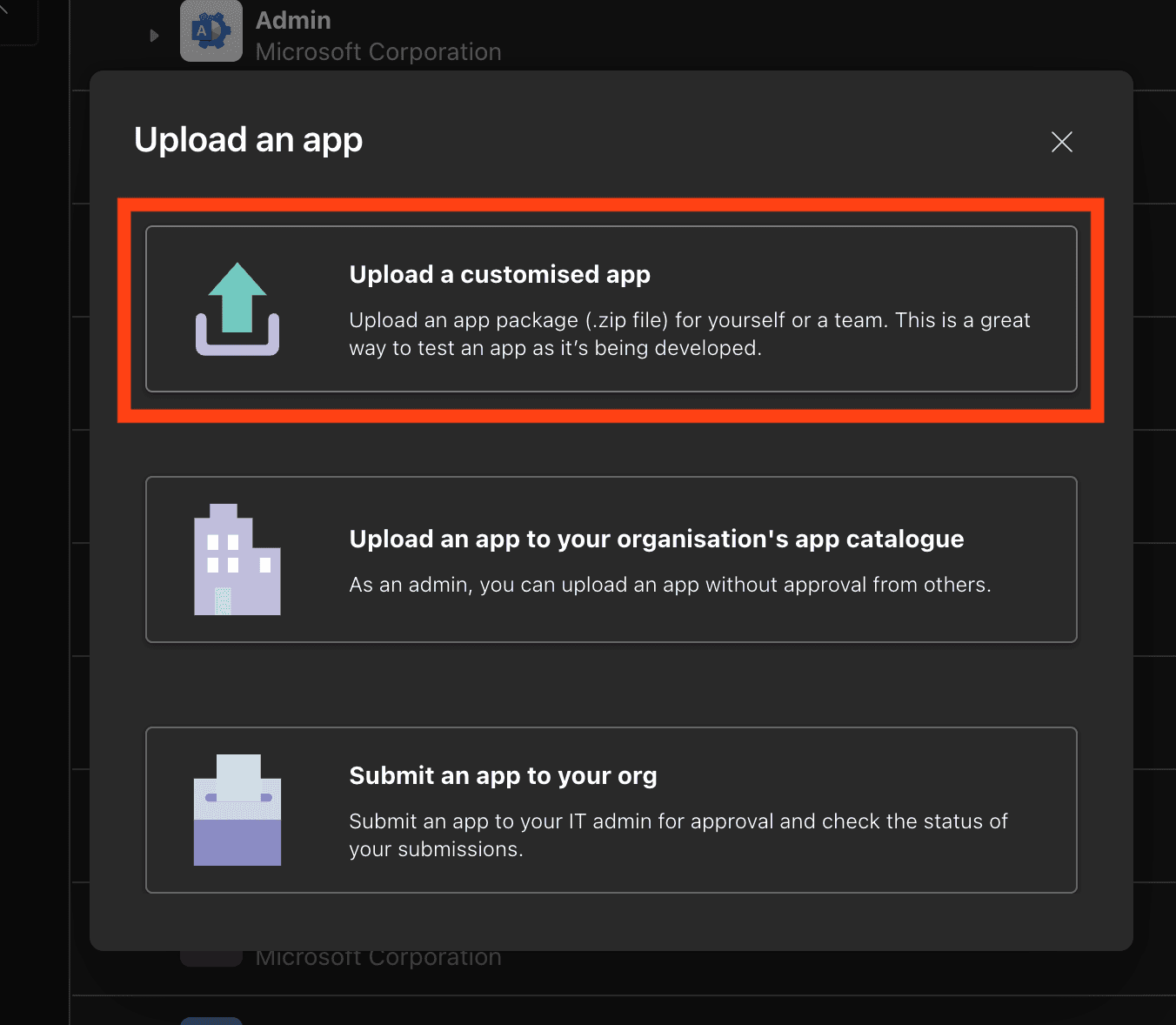
In the upload dialog, click Upload a customised app and select the TeamVis Teams App zip file downloaded from the buttom at the top of the page.
Next step
Once the app is installed, you can add the TeamVis chatbot to your channels.
How to add the TeamVis chatbot to a channel →